· updated
How to Merge PDF Files Online Without Uploading
By NotAtAll
Combining a cover letter with a resume, putting invoices in date order, or collecting scanned pages all require the same decision: which pages should appear first? The Merge PDF tool copies pages from the selected files into a new PDF in the order shown in the file list. It processes those files in the browser without uploading their contents.
Keep the original files. A merge creates a new document; it is not a byte-for-byte copy of the inputs and is not a way to preserve a signed document’s validity.
How to merge PDFs in your browser
- Open the Merge PDF tool.
- Add at least two PDF files. Check the filenames before continuing, especially when several scans have similar names.
- Reorder the files in the list. Each file contributes all of its pages, in its existing page order.
- Click Merge PDFs and download the combined file.
- Reopen the downloaded PDF. Confirm the page count, the boundary between each source file, the page orientation and any small print.
To move or remove individual pages, use Organize PDF. To include only a specific range from one document, use Split PDF before merging.
A checked two-file example
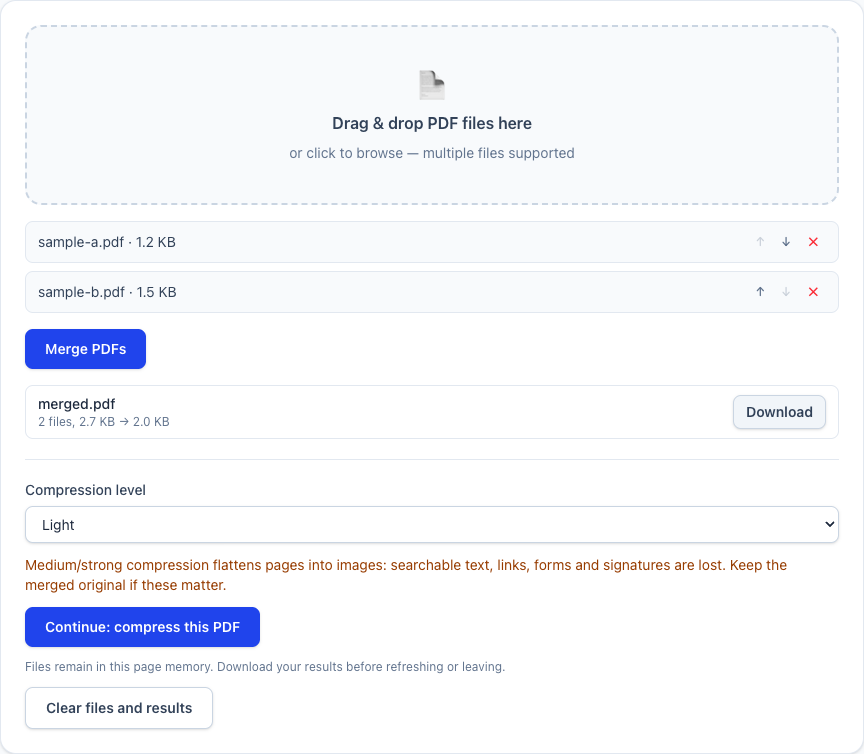
On September 5, 2026, we generated two synthetic A4 text documents: sample-a.pdf with two pages and sample-b.pdf with three. Each page had a unique label from “Synthetic page 1” to “Synthetic page 5”. We selected them in the public tool interface and downloaded merged.pdf.
The output reopened as five pages. A separate PDF.js text extraction read all five labels in order. The screenshot below shows that run, including the separate compression option. It contains no customer documents.
What merging preserves and what to check
The merger uses pdf-lib’s page-copying operation. It does not deliberately rasterize the pages or recompress their images. In ordinary text PDFs, text remains selectable and images retain their embedded resolution. The output container and metadata are rewritten, so its bytes and size differ from the source files.
Document-level features need separate checks:
- Digital signatures: keep the original signed files. Copying their pages does not preserve a verifiable signature on the new document.
- Forms, bookmarks and internal links: do not assume these survive a page copy. Test them in the downloaded file; use a PDF editor that supports those features when they are required.
- Scanned text: merging does not perform OCR. An image-only scan remains image-only.
- Password protection: the tool rejects encrypted PDFs. Use a document you are authorized to open and modify; this tool does not remove passwords.
How to merge scanned PDF files
Scanned documents often arrive as one PDF per page, or as a mixture of pages scanned in different directions. The reliable order is:
- Use Rotate PDF to fix sideways or upside-down pages first. It changes the page rotation inside the PDF, so you do not have to export the scan to an image and lose quality.
- Open Merge PDF and add the corrected files in reading order. The merger’s list shows filenames, not page thumbnails, so inspect the source PDFs if their names are ambiguous.
- If the combined scan is too large to send, compare a compressed copy with the original. Our PDF compression guide explains the size and readability trade-offs.
Merging does not make a scan searchable. A scanned page is still an image unless it already contains a text layer; use an OCR workflow separately when the recipient needs to select or search the words.
Compress after merging
The merge result can continue into compression on the same page without another file selection. The original merged download remains separate from the compressed download, including when compression fails.
Light re-saves PDF objects. Medium and Strong can turn pages into images and remove selectable text, links and interactive fields. Check the actual file size and open the result before replacing anything. If reducing the size is unnecessary, keep the uncompressed merge.
When merging fails or the tab closes
There is no account quota, but available device memory, browser limits and document complexity still constrain processing. Large scans can exhaust a phone’s memory. Try fewer or smaller files, close other tabs, or use a desktop browser. Do not assume a failed merge has saved a partial result.
If a small file fails too, open it in a PDF reader and check whether it is encrypted or damaged. Renaming another file type to .pdf does not convert it. Use JPG to PDF for pictures that are not yet PDF documents.
The working session is held in page memory. Download before refreshing or leaving. Clear files and results discards the current session; it does not remove files you have already downloaded to your device.
Merge PDF
Open tool